Gallery
See what others have created
designeraleksa
@designeraleksa
Integrations Page
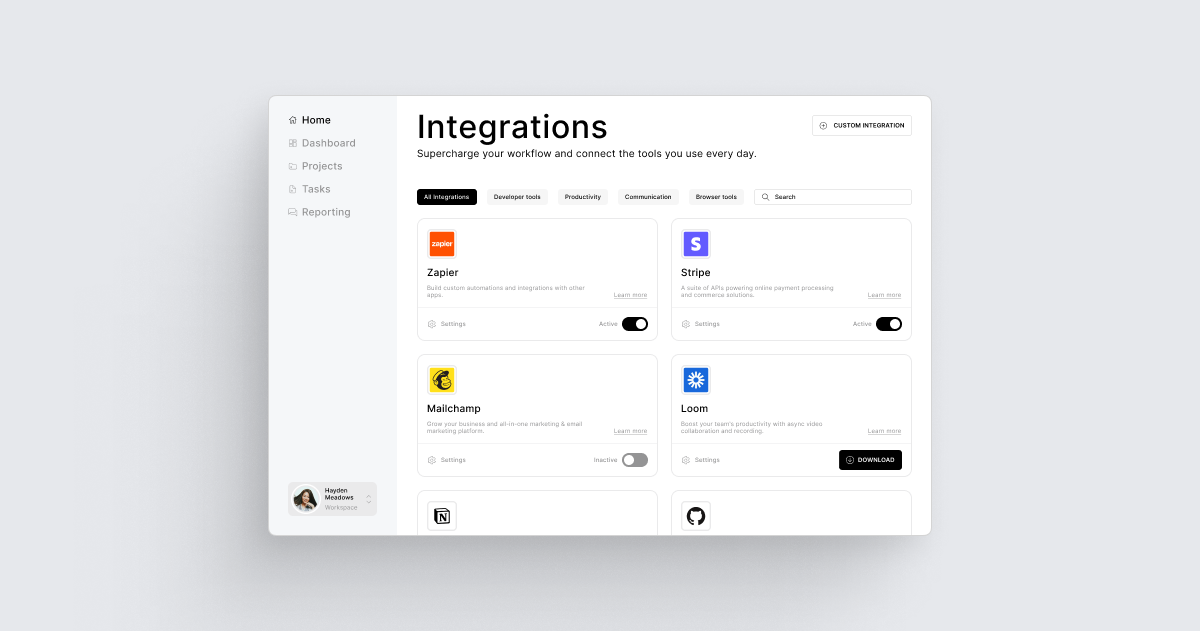
Design an integrations page that works like a control center: users should be able to scan what is connected, find what they need, and start setup without hunting through settings. Treat each integration as a small product surface, not just a logo tile.
The page header should explain what integrations do in this product and give one primary action, such as Connect integration. Below that, show integrations in a clear list or grid with logo, name, category, short purpose, and a visible status chip. Use states like Connected, Not connected, and Setup required so the page reads fast.
Each integration card should expose the next step. For connected tools, show last sync or sync health. For setup-required tools, show what permission or step is missing. For disconnected tools, show the benefit and a direct connect action. If you use a drawer or modal, keep the entered context visible so users do not lose their place.
Include search and a simple filter for status or category. The best version lets someone find Slack, Stripe, or Salesforce in one pass, understand whether it is live, and take the next step from the same screen.
What to deliver
- Design the page header with a short explanation and a primary action to connect a new integration.
- Show integrations as a browsable list or grid with logo, name, status, and one-line purpose.
- Include status states for connected, not connected, and needs setup.
- Add a detail drawer or card expansion for setup steps, permissions, and last sync info.
- Provide a search or filter control for finding integrations by category or status.
Inject some creativity by including unique icons or badges for each integration that communicate their purpose at a glance.