Gallery
See what others have created
felixdesbiens
@felixdesbiens
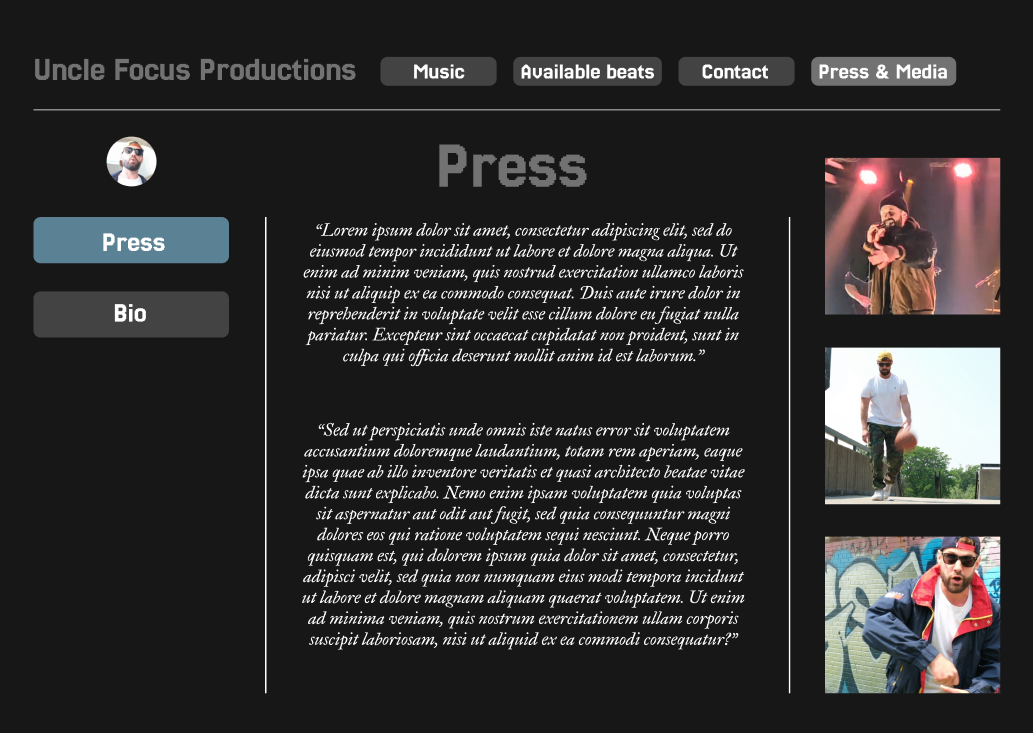
Press & Media Page
Design a Press & Media page as a working media room, not a marketing splash page. The first screen should explain what’s available, who it’s for, and where to go next. Give the page one clear path for urgent requests: contact media relations or download a press kit.
Organize the content around real media tasks. Group assets into press releases, logos, executive bios, product photos, event coverage, and company facts. Each item should show enough metadata to avoid dead ends: title, date, file type, file size, and whether it’s downloadable or view-only. If you include a press kit, make it the fastest route to the full set.
Add filtering that matches how journalists search: by asset type, topic, and date. Keep the layout clean and utility-first, with strong typographic hierarchy and obvious download actions. The page should feel easy to scan on deadline, with no decorative clutter getting in the way.
Place media contact information near the top and repeat it at the bottom. If you add an inquiry form, keep it short and specific to press needs so it does not compete with the asset library.
What to deliver
- Design a page header with a short media-room intro and a clear contact path.
- List press assets by type: press releases, logos, executive bios, photos, and fact sheets.
- Add filters or tabs for asset categories and a way to sort by date or relevance.
- Create downloadable asset cards with file type, size, and usage notes.
- Include a media contact block with name, email, and response expectations.
Embrace white space to distinguish sections and improve the page's overall clarity, aiding media personnel in quickly finding what they need.