Gallery
See what others have created

pariisaui
@pariisaui
Order History
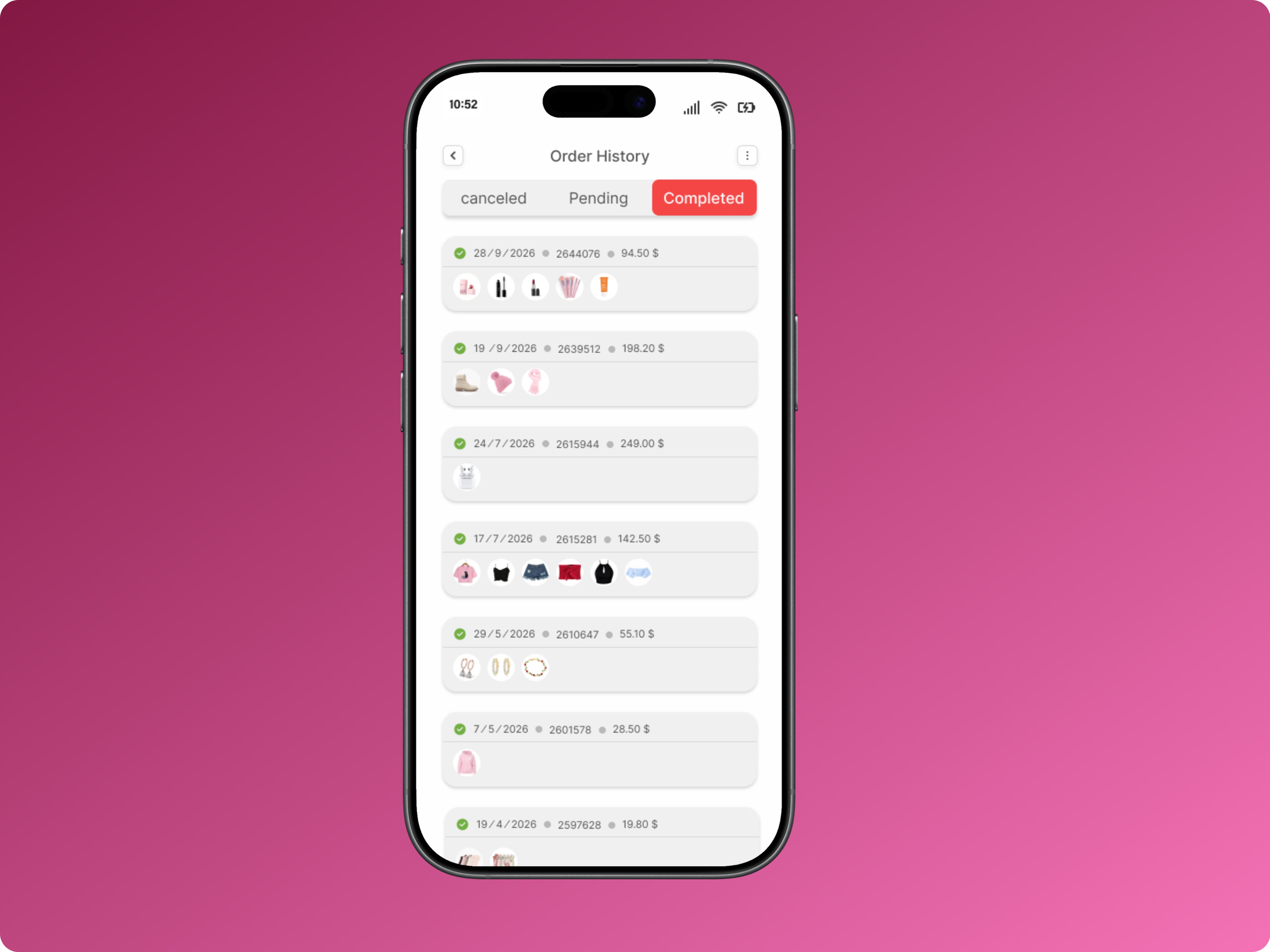
Design an order history page that helps shoppers scan past purchases fast, then jump into the right next step. The default view should be a clean list of orders, each showing order number, purchase date, item summary, total, and status. Keep the row compact, but make the most important field — usually status or total — easy to spot at a glance.
Place filters and sorting above the list. Start with the basics: date range, order status, and product type, plus a sort for newest, oldest, or highest value. If the list is long, show the active filters clearly so users know why results changed. When there are no matches, explain that directly and offer a quick reset.
Each order should support a small set of actions: view details, reorder, and download receipt. Don’t bury these behind a full page if they can live in a row menu or right-aligned actions. If an order has multiple items, collapse the item list into a short preview with a count, then expand only when needed.
The layout should hold up on mobile and desktop. On smaller screens, stack the row content without losing the order number, date, and status. Keep the list readable in dense states, and make empty, loading, and filtered-result states feel intentional instead of generic.
What to deliver
- Design the order history list with order number, date, total, and status.
- Add filter and sort controls for date range, status, and product type.
- Show per-order actions like view details, reorder, and download receipt.
- Include empty, loading, and no-results states with clear next steps.
- Adapt the layout for mobile and desktop without losing scanability.
Incorporate engaging icons and colors to distinguish different order statuses, making the timeline of past activities intuitive and scannable.